| Product/Service: | MySideline Admin |
| Permission Required: | Club & Association Admin |
The MySideline Communicator is available to Club and Association administrators to help you stay connected with your members. Admins can send "club-branded" emails to their current and past members, filtering by team, age, season, and more.
To ensure compliance with privacy laws, please ensure that your use of the communicator functionality is for a legitimate administrative function, as described below:
- to provide important notifications to your current/previous members about registering, venue/game changes, compliance, etc., but NOT for marketing purposes;
- and to otherwise communicate information which is necessary to administer or organise the game.
Using the Communicator
- Log in to MySideline Admin and select Communications from the left-hand menu. This can be found under the Administration section.
- If you have more than one user permission, you may need to use the Switch Roles option to change to the correct entity.
- Choose the relevant tab applicable to your member base you'd like to send to. Options available vary depending on administrative level:
- Association admins have the option to send comms based on Club, Competition, or Team
- Club admins can send based on Team or Program
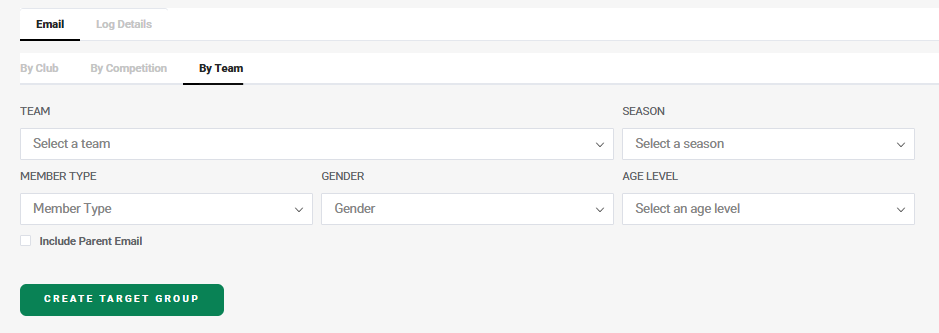
- Use the filters to create the target group you wish to contact. NOTE- To contact all members within a filter, leave it unselected/blank.E.g. If you want to contact all Age Levels, don't specify an Age Level.
- Club/Competition/Team/Program - choose relevant option/s, or leave blank to include all.
- Season- choose the current or previous season/s.
- Registration Status - use this option if you are contacting members from a past season. First, select the Season you want to target then select Inactive registration status. This will email the members that haven't registered this season yet.
- Member Type - select which member types to send this communication to. NOTE - If you leave this field unselected, the message will be sent to ALL Member Types
- Gender - only select an option if you only want to communicate to specific genders in your groups
- Age Level - Select which age level to send this communication to. NOTE - If you leave this field unselected, the message will be sent to ALL Age Levels
- Send Reminders To - options are available if you need to target Pending Registrations (i.e. participants who have not been approved by an administrator), or Non-Financial members (i.e. participants where their Financial Status equals "No")
- Include Parent Email - tick this option to send communications to the participant's parent email. If the primary email and the parent email are the same, only one email will be sent to that participant
- After you have selected your filters above, click Create Target Group and you will then be shown the number of email addresses that will be sent your communication. The Target Group Count is a count of all email addresses the comms will be sent to, not necessarily your member count. Duplicate emails will count as 1 email address.
- You can now compose your email, and you'll see a preview on the right of the screen:
- Email Subject - Enter the subject for your email
- Email Body - Add the body of the email here. NOTE - If you are entering URL links, include the www. before the link. E.g. www.nrl.com
- Ensure you are only sending emails that are required for game administration. Promotional and marketing emails should NOT be sent through the Communicator.
- Exclusion Emails - Enter email addresses here that have advised they do not wish to receive communications from your entity.
- Preview how your email will appear on the right of the screen, then click Send Email when you're ready.
To view the communications you've sent, click on the Log Details tab at the top of the screen. You'll see the sent emails, who sent them and when. Note - Communications are sent in batches of 500 to accommodate larger entities
Was this article helpful?
That’s Great!
Thank you for your feedback
Sorry! We couldn't be helpful
Thank you for your feedback
Feedback sent
We appreciate your effort and will try to fix the article